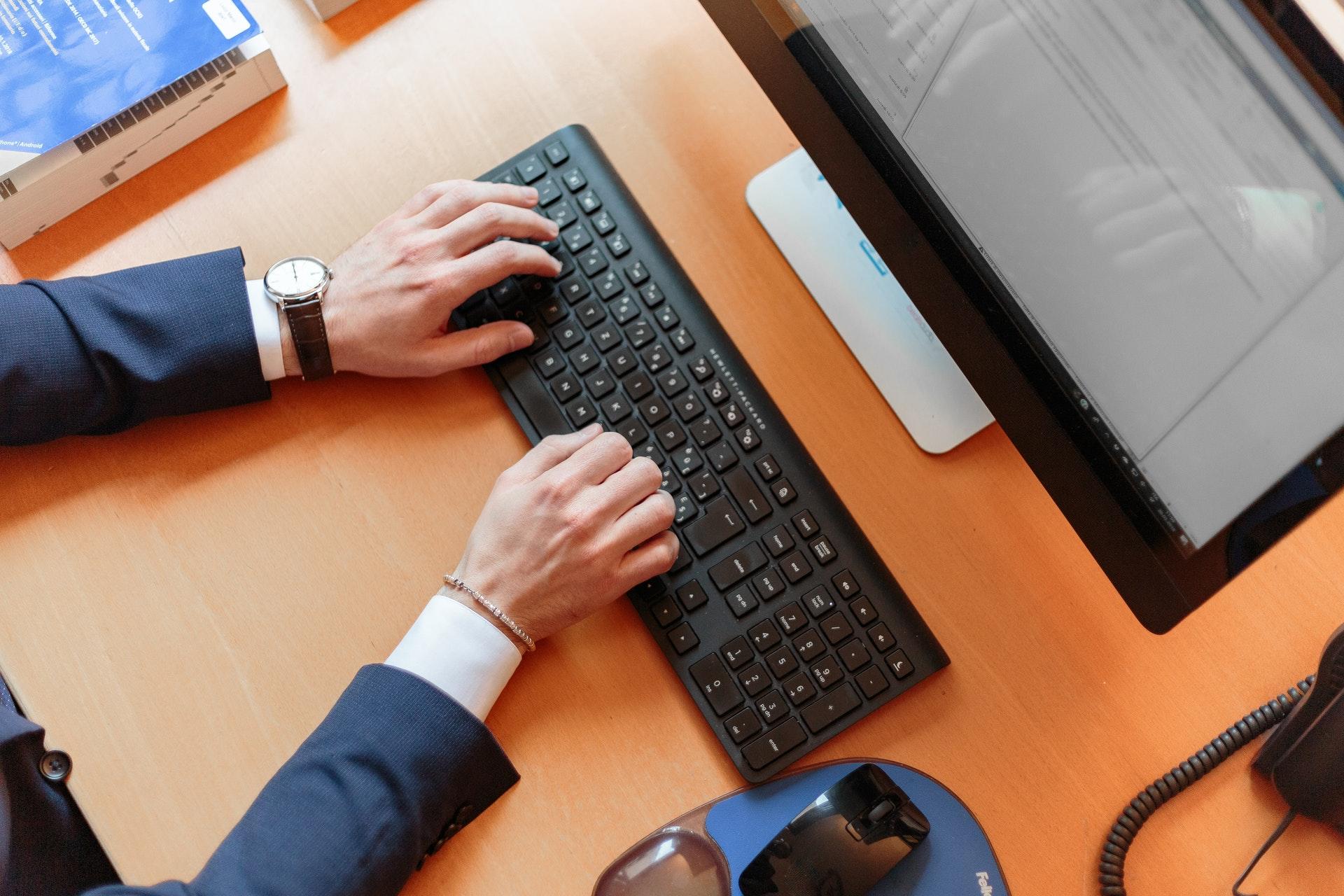
During the use of a MacBook or iMac, one of the most frustrating issues Bluetooth keyboard users may encounter is the keyboard not being recognized after the Mac goes to sleep. When the machine wakes up, the keyboard cannot be used immediately, and users are forced to reconnect it before it functions normally. Notably, if you shut down the Mac and turn it back on, the keyboard works without any issues.
This problem mainly occurs with Bluetooth keyboards on macOS and tends to appear randomly, rather than consistently every time the device sleeps. Let’s explore the possible solutions below with Vietgear.vn.
You have to go into Bluetooth settings to Disconnect and then Connect again before the keyboard works.
Testing the same keyboard on another Mac works perfectly fine.
Connecting a different Bluetooth keyboard to the affected Mac does not cause any issues.
This suggests that the problem is most likely not related to the keyboard hardware itself, but rather to macOS software or its Bluetooth connection management mechanism.
Why Does This Issue Occur?
Based on various user feedback and discussions on Mac forums, several common causes can be identified:
1. Bluetooth Management Issue During Sleep
When macOS enters Sleep mode, the system temporarily disconnects or reduces power consumption for peripheral devices. In some rare cases, the process of “waking up” Bluetooth is not entirely stable, resulting in the keyboard failing to reconnect automatically.
This issue is related to macOS power management and the Bluetooth stack.
2. Firmware Conflict Between the Keyboard and macOS
Some Bluetooth keyboards—especially custom mechanical or multi-mode models—use their own firmware. When paired with certain macOS versions, minor compatibility issues may occur, causing connection loss after Sleep.
3. Corrupted Bluetooth Cache
macOS stores information about paired Bluetooth devices. If the configuration file becomes corrupted, the system may fail to properly restore the connection after waking from Sleep.
In practice, this is a relatively rare problem. Over a span of about three years, only around two similar cases were recorded. Not all Bluetooth keyboard models experience this issue.
Therefore, if you are using a Bluetooth keyboard on macOS, there’s no need to worry too much. This is not a widespread problem.
How to Fix the Keyboard Not Recognized After Sleep Issue
Keyboard Not Recognized After Sleep issue on macOS
If you encounter this situation, you can try the following solutions:
1. Turn Bluetooth Off and On Again
Go to System Settings
Select Bluetooth
Turn Bluetooth off, then turn it back on
This method quickly resets the connection without restarting the Mac.
2. Forget the Device and Pair Again
Go to Bluetooth
Select “Forget This Device”
Pair the keyboard again
This completely refreshes the pairing information.
3. Reset Bluetooth on Mac
You can delete the Bluetooth configuration file:
Open Finder
Select Go → Go to Folder
Enter:
/Library/Preferences/
Find the file:
com.apple.Bluetooth.plist
Delete the file and restart your Mac
After restarting, macOS will generate a new configuration file.
4. Update macOS
If you are using an older macOS version, try updating to a newer one. Apple often fixes Sleep and connection management bugs in minor updates.
5. Check the Keyboard Battery
A low battery level can also make the reconnection process unstable after Sleep. Make sure your keyboard has sufficient charge or is fully charged before use.
Conclusion
The keyboard not being recognized after Sleep on macOS mainly occurs with Bluetooth keyboards and is usually related to the operating system’s connection management mechanism rather than hardware failure. It is a rare issue and can typically be resolved with simple connection reset steps.
This article is a compilation of information gathered from various online sources. Personally, I use Windows 10, so I do not have direct experience with macOS. If you have additional insights or solutions, feel free to share them so everyone can learn.
Read more about solutions to the keyboard not recognized issue:
Vietgear là tác giả và biên tập viên chuyên chia sẻ kiến thức về công nghệ, bàn phím cơ, gaming gear và phụ kiện máy tính. Với phong cách viết dễ hiểu, cập nhật xu hướng mới, Vietgear mang đến nhiều thông tin hữu ích giúp người dùng lựa chọn thiết bị phù hợp và tối ưu trải nghiệm công nghệ.